Important: Microsoft disabled Basic Authentication for Exchange Online in October 2022. Username + password with IMAP/SMTP no longer works against Microsoft 365. You need Modern Authentication (OAuth2 / XOAUTH2). Unlike Google, Microsoft does not offer App Passwords — there's no shortcut. The setup below covers both options: SMTP client submission with a device code (if your tenant still permits it) and full OAuth2, which is the right path for production.
A GLPI instance on Microsoft 365 needs two things: a mailbox to receive incoming emails and create tickets (the mailgate receiver), and an SMTP channel to send notifications out. Both have to authenticate with Modern Auth against Exchange Online.
Before you start
- The mailbox must be a real, licensed mailbox — shared mailboxes work for receive but require extra setup for send (licence a user, grant SendAs)
- IMAP must be enabled on the mailbox: Exchange admin center → Recipients → Mailboxes → pick the user → Manage email apps settings → IMAP ON
- SMTP AUTH is disabled tenant-wide by default since 2020. Enable it on the specific mailbox if you're going the SMTP-submission route: Manage email apps settings → Authenticated SMTP ON
- Your Microsoft 365 admin needs to be involved — the app registration in step 2 is not a per-user operation
1. Register an app in Entra ID
In Entra ID (formerly Azure AD) → App registrations → New registration:
- Name:
GLPI Mail(or whatever identifies it in your tenant) - Supported account types: Accounts in this organizational directory only
- Redirect URI: Web →
https://your-glpi.example.com/front/oauth.callback.php
After registration, note the Application (client) ID and Directory (tenant) ID. Under Certificates & secrets, create a Client secret and copy the value — it's shown once.
Under API permissions, add the delegated permissions GLPI needs:
IMAP.AccessAsUser.All— to read the mailboxSMTP.Send— to send notificationsoffline_access— so refresh tokens work (no re-consent every hour)
Click Grant admin consent. Without this, users hit a consent prompt the first time GLPI tries to authenticate, which doesn't work for a headless system.
2. Inbound — receiver configuration in GLPI
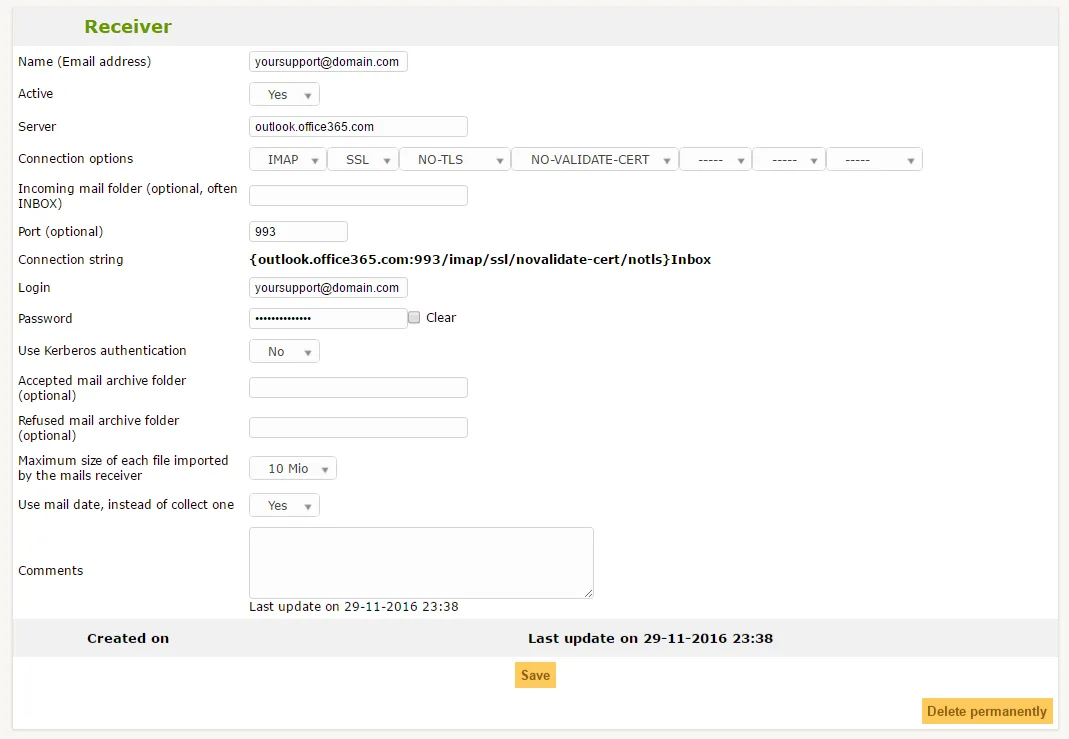
In GLPI 10.0.10+, receivers support OAuth2 natively. Go to Setup → Notifications → Receivers → Add. Use the screenshot above as reference for field placement. The configuration:
- Server:
outlook.office365.com - Port:
993 - Connection options:
IMAPwithSSL, OAuth authentication - Provider: Microsoft (Azure) — paste the tenant ID, client ID, client secret from step 1
- Login: the mailbox address (e.g.
tickets@yourdomain.com) - Folder:
INBOX(or a dedicated folder if you filter first)
Save, then use Authorize to run the OAuth consent flow. The connection string you won't need anymore: the old {outlook.office365.com:993/imap/ssl/novalidate-cert/notls} relied on Basic Auth and won't connect.
3. Outbound — SMTP configuration
Under Setup → Notifications → Notifications, in Follow-up configuration:
- SMTP mode:
SMTP+TLSwith OAuth - Mail server:
smtp.office365.com - Port:
587 - Provider: Microsoft (same tenant/client/secret as inbound)
- Login / From: the mailbox address
Test with Send a test to you. If the send fails, check files/_log/mail-error.log for the SMTP response.
Alternative: SMTP relay via connector
If OAuth is blocked by your security team, or you're sending from an on-prem box with a static IP, there's a second path: an Exchange Online connector that relays anonymous or IP-authenticated SMTP. You point GLPI at yourtenant-com.mail.protection.outlook.com on port 25 from an allow-listed IP, and Exchange Online accepts the mail without credentials. This works for outbound only — receiving tickets still needs authenticated IMAP/Graph.
Common failure modes
- "AUTHENTICATE failed" with username + password — expected. Basic Auth is dead. Use OAuth2.
- "535 5.7.139 Authentication unsuccessful" on SMTP — SMTP AUTH is disabled on the mailbox or tenant-wide. Enable it per-mailbox, or switch to OAuth2.
- OAuth consent loop — admin consent wasn't granted in step 1, or the redirect URI doesn't exactly match what's registered in Entra.
- Tickets don't arrive but no errors — the mailgate Automatic Action isn't running. See our GLPI cron guide for setting up real cron.
- Empty
##ticket.url##in outgoing notifications — unrelated to mail auth. See empty URL in email notifications.
Should you use Microsoft 365 for GLPI mail?
If your company already runs on Microsoft 365 and the support inbox lives there, yes — OAuth2 is a one-time setup and refresh tokens handle the rest. For higher-volume outbound (thousands of notifications per day), route the send path through a transactional provider like Amazon SES or Postmark and keep Microsoft 365 for inbound only. You get better deliverability and isolate ticket flow from Microsoft's periodic auth-flow changes.