GLPI uses a mailbox to receive emails that become tickets (the mailgate receiver) and an SMTP host to send notifications back out. Gmail can do both — but the setup changed significantly after Google ended "less secure app" access in May 2022. The old "username + password" approach no longer works. You now need either an App Password (simple) or OAuth2 / XOAUTH2 (proper, but more work).
Prerequisites on the Gmail side
- 2-Step Verification must be enabled on the Google account. Google won't let you create App Passwords without it.
- For a business mailbox, use a Google Workspace account. Workspace admins can also impose their own security policies that override these settings.
- IMAP access must be turned on in Gmail: Settings → See all settings → Forwarding and POP/IMAP → Enable IMAP.
Option A: App Password (simplest)
Generate an App Password at myaccount.google.com/apppasswords. This gives you a 16-character password that bypasses Google's normal auth flow for a specific application. Treat it like a token — anyone with it can read mail.
Inbound — receiver configuration
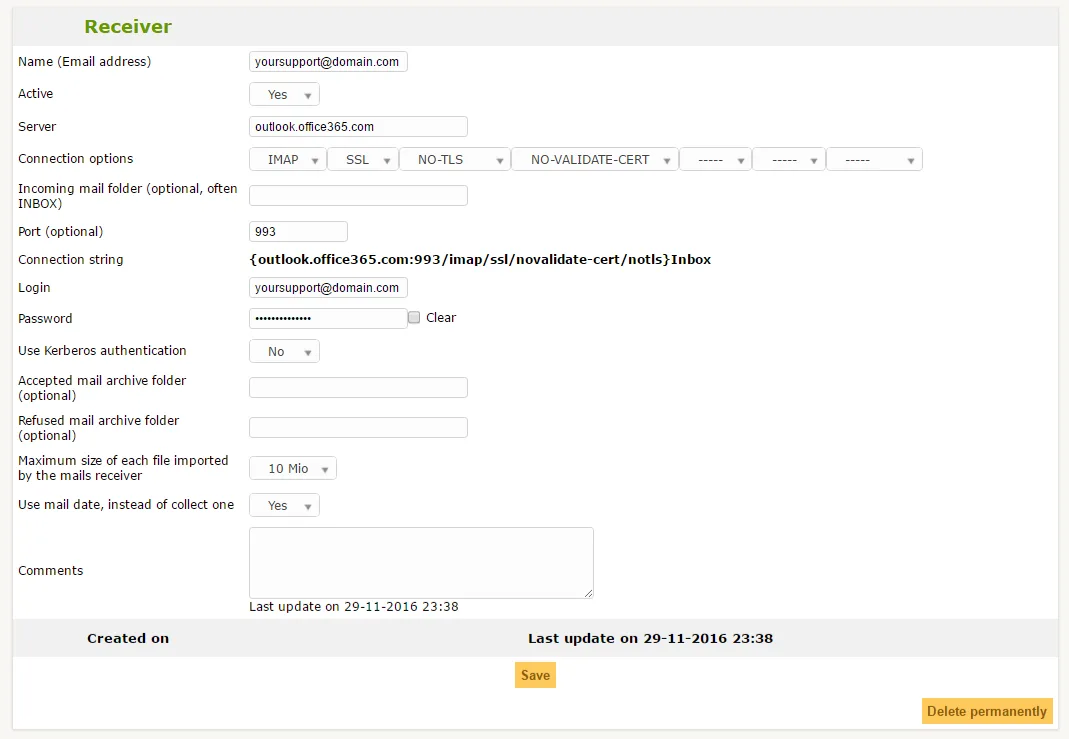
In GLPI: Setup → Notifications → Receivers → Add. The shown screenshot above is a typical configuration. The connection string that works with modern Gmail IMAP:
{imap.gmail.com:993/imap/ssl}INBOXNote the dropped novalidate-cert/notls — Gmail has valid certs and forces TLS, so the old flags are unnecessary and on some PHP versions actively break the connection. Use your Gmail address as login and the 16-character App Password as password.
Outbound — SMTP configuration
Under Setup → Notifications → Notifications, set Follow-up configuration:
- SMTP mode:
SMTP+SSL - Mail server:
smtp.gmail.com - Port:
465(or587withSMTP+TLS) - Login: your full Gmail address
- Password: the same 16-character App Password
Click Send a test to you — if nothing arrives, check files/_log/mail-error.log in your GLPI directory for the actual SMTP response.
Option B: OAuth2 (recommended for production)
App Passwords work but they're a long-lived secret tied to one user. For a production ITSM instance you want OAuth2 (XOAUTH2) so access is scoped, revocable, and survives password resets.
GLPI 10.0.10+ supports OAuth2 for mail natively via the oauth-imap feature and the SMTP OAuth plugin. Setup in outline:
- In Google Cloud Console, create a project and enable the Gmail API
- Create an OAuth 2.0 Client ID of type Web application
- Add an authorized redirect URI pointing to your GLPI's oauth callback (e.g.
https://glpi.example.com/front/oauth.callback.php) - In GLPI, configure the OAuth provider with the client ID and secret, then authorize the mailbox
For Workspace tenants, a service account with domain-wide delegation avoids per-user consent flows entirely — useful if you're routing a shared inbox like support@.
Common failure modes
- "Authentication failed" with a regular account password — expected. Google blocks it. Use an App Password.
- "Please log in via your web browser" — Google triggered a security challenge. Log in to Gmail interactively from a browser on the GLPI server or complete the CAPTCHA at accounts.google.com/DisplayUnlockCaptcha.
- Tickets don't arrive but no errors — the mailgate Automatic Action probably isn't running. If you're not running a real cron, see our GLPI cron guide.
- Every email from Gmail ends up as a new ticket — check that GLPI's Use mail reference is enabled so reply threading works against
In-Reply-Toheaders.
Should you use Gmail at all?
For a small team or a pilot, Gmail is fine. For anything production-grade with SLAs, consider a dedicated transactional provider (Amazon SES, Postmark, Mailgun) for outbound — they handle deliverability, bounces, and reputation properly, and don't introduce Google's occasional auth friction into your ticket flow. Inbound can stay on Gmail/Workspace and forward to whatever mailbox GLPI polls.